BETTERSHIP FOR GOOGLE CHROME™
Add what you’re learning from any page in Chrome
Save articles, YouTube videos, podcast episodes, and lessons from courses you’re taking, straight into Bettership, where they’re transcribed, summarized, and connected to what you’re working toward.
Get started for free.
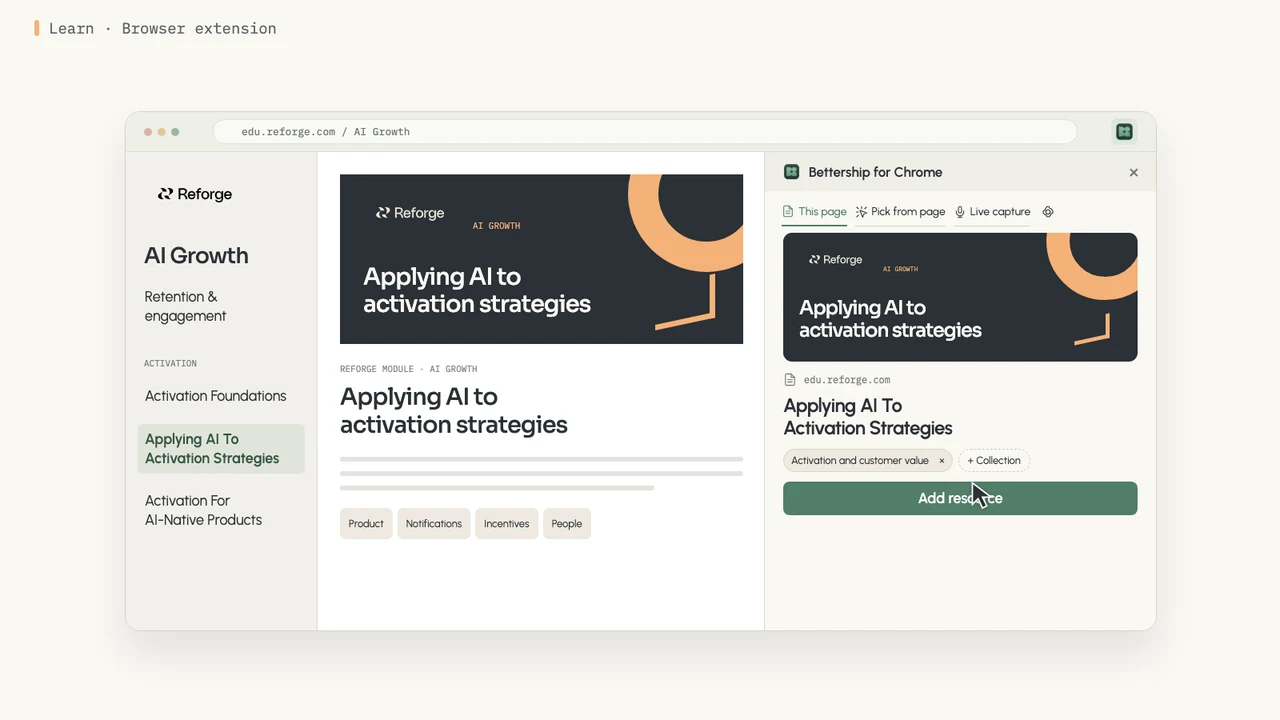
Your learning happens all over the web
A lesson from a course, a YouTube video in another tab, a newsletter on Substack, a post someone shared on LinkedIn. Each one has something that can move you forward, and each lives somewhere different. Pulling them together means copying links and switching apps, and the lessons from a course you’re taking are the hardest to keep.
Open the panel, add the page, and keep going

Add the page you’re on
Open the Bettership panel on an article, a YouTube video, a podcast episode, a LinkedIn post, or a lesson from a course you’re taking. Edit the title, pick a collection, and press Add resource.
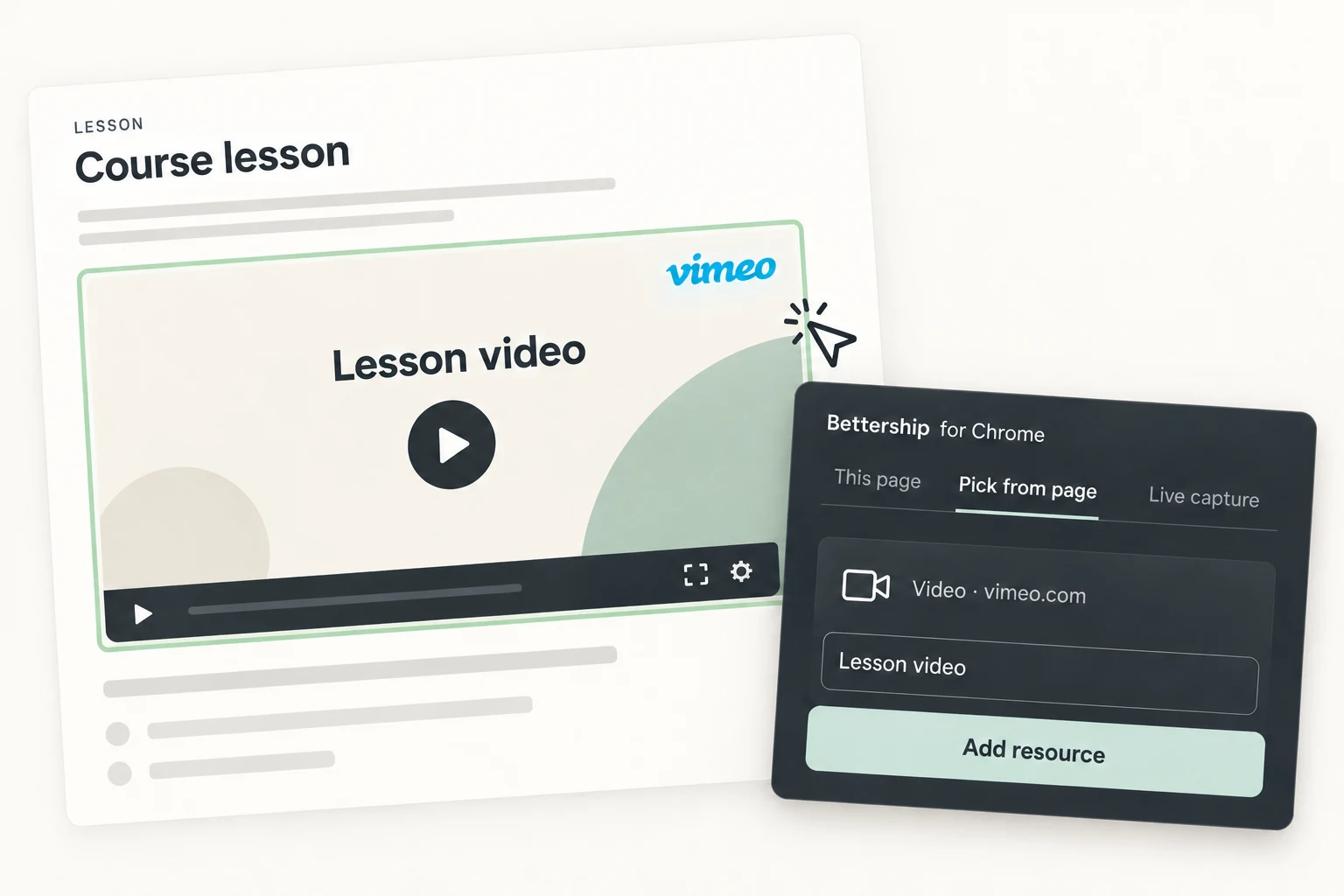
Pick a video or audio player
When a lesson has its own player, point at it and click. Vimeo, Loom, Wistia, and the players many course sites use come in through the desktop app and get transcribed like everything else.

Capture a live session
Watching a webinar or a live lesson? Start a live capture from the panel. The desktop app records it, and your notes open right beside the page.

Know when it’s ready
Everything you’ve added shows in the panel with its status. When it’s ready, Chrome lets you know, and one click opens it in the desktop app.
Built for the places you learn

Works everywhere you learn
Courses you’re taking, paid newsletters you subscribe to, YouTube, podcasts, LinkedIn. Add from any of them the same way, and it all comes into your library side by side.

Knows what you already have
Open the panel on something you’ve already added, and it tells you, with a link to open it.

More than a saved page
Everything you add is transcribed, summarized, and connected to the rest of your library, ready to ask about and practice.

Private by design
Nothing runs when a page loads. The panel reads the page in front of you only while it’s open, and sends the page’s content to Bettership only when you press Add resource. Sign-ins for video players stay on your computer.
Common questions
Yes, to get started. Your Bettership account begins in the desktop app, and that’s where you read, practice, and use what you add. After that, articles, YouTube videos, podcasts, and LinkedIn posts go straight in from Chrome. Picking a player from a page and live capture run through the desktop app.
Most pages you can read in Chrome, including articles, newsletters, YouTube, Vimeo, Spotify and Apple Podcasts pages, LinkedIn posts, and lessons from courses you’re taking. If a page can’t be read, Bettership saves the link and tells you, and live capture covers what’s left.
While the Bettership panel is open, it reads the page in front of you, on your computer. The page’s content goes to Bettership only when you press Add resource, and opening the panel may share the page’s address to show a preview. Chrome asks for access to all sites when you install it, because the panel needs to read whichever page you open it on.
Yes. Option+Shift+B opens the panel on a Mac, and you can change it in Chrome’s shortcut settings. You can also right-click any page and choose Add to Bettership.
The extension is included with Bettership. What you add uses credits, the same as adding it in the desktop app. See pricing
Bettership for Google Chrome™ is built for Chrome today. Want it in Firefox, Safari, or another browser? Join the waitlist
Add what you learn, wherever you learn it
Open the panel on the next page you learn from and add it, so it counts toward what you’re after.
Get started for free.